Dashboard Overview
Introduction
The Dashboard is your central hub for managing daily work and monitoring case activity. It provides an at-a-glance view of your assigned tasks, case files, and workload distribution through interactive charts and a task grid.
Key Features
📊 Quick Statistics
At the top of your dashboard, you'll see three key metrics:
- Today's Tasks - Number of work items due today
- Active Case Files - Total number of case files you're managing that are currently in treatment
- New Case Files - Case files opened within the last month

Interactive Charts
Priority Distribution (Donut Chart)
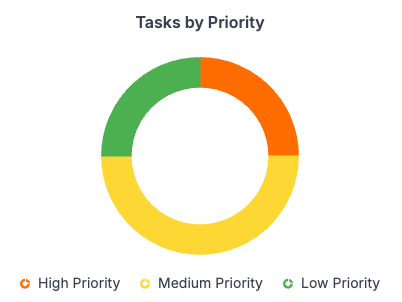
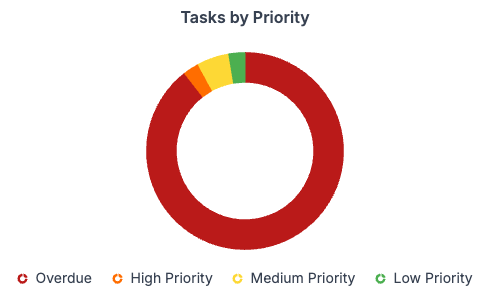
The donut chart on the left shows your tasks broken down by priority level:
- High Priority (Orange)
- Medium Priority (Yellow)
- Low Priority (Green)
- Overdue (Red) - Tasks that have passed their due date
How to Use:
- Click on any segment of the donut chart to filter the task grid by that priority level
- The bar chart will automatically update to show task types within the selected priority
- Click the same segment again to remove the filter
Task Type Distribution (Bar Chart)
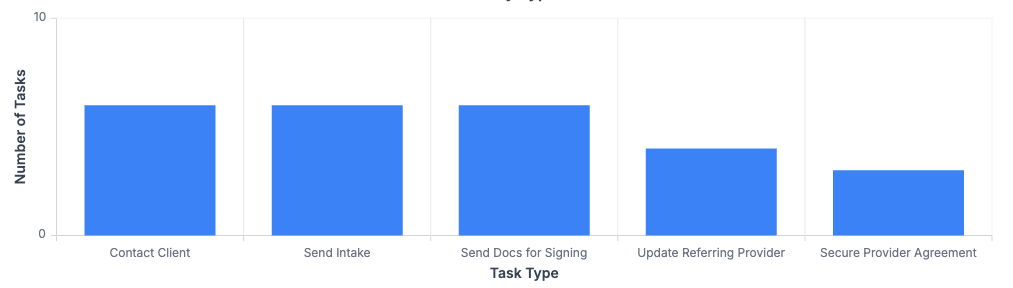
The bar chart on the right displays your tasks organized by type (e.g., Follow-up, Review, Meeting, etc.).
How to Use:
- Click on any bar to filter the task grid by that specific task type
- The donut chart will automatically update to show priorities within the selected task type
- Click the same bar again to remove the filter
Combined Filtering:
You can combine both filters! For example: 1. Click "High Priority" on the donut chart 2. Then click "Follow-up" on the bar chart 3. The grid will now show only high-priority follow-up tasks
Task Grid
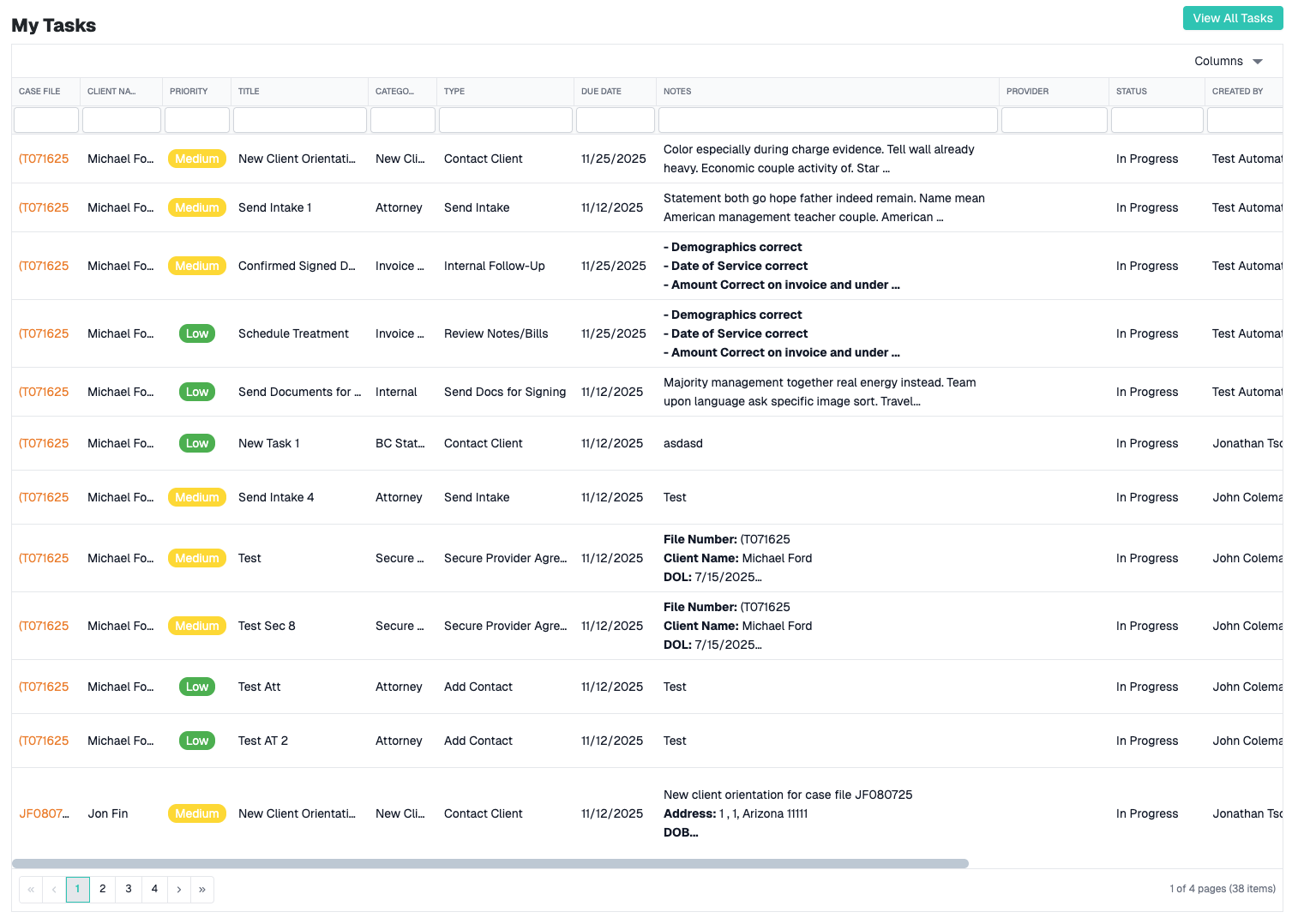
The main section displays a detailed grid of your assigned work items with the following columns:
- Description - What type of task
- Priority - Visual indicator of task priority
- Due Date - When the task is due
- Status - Current state of the task
- Type - Category of work item
- Associated Case - Related case file (if applicable)
Grid Features
- Sorting - Click on any column header to sort by that field
- Searching - Use the search box to find specific tasks
- Filtering - Use the filter icon in column headers for advanced filtering
- Editing - Click on a row to view or edit task details
Filter Controls
Today Toggle
Located at the top of the task grid, this toggle switch allows you to:
- ON (Today) - Show only tasks due today
- OFF (All Tasks) - Show all assigned tasks regardless of due date
Note: When filtering by "Overdue" priority, the system automatically switches to show all tasks to include past-due items.
Clear Filters Button
Click the "Clear Filters" button to reset all applied filters and return to the default view showing today's tasks.
Common Workflows
Viewing Today's High Priority Tasks
- Ensure the "Today" toggle is enabled
- Click on the red "High Priority" segment in the donut chart
- Review the filtered task grid
Finding All Follow-up Tasks
- Toggle off "Today" to show all tasks
- Click on the "Follow-up" bar in the bar chart
- Sort by due date to prioritize
Checking Overdue Items
- Click on the "Overdue" segment in the donut chart (dark red)
- The view automatically switches to show all tasks
Resetting Your View
- Click the "Clear Filters" button
- Adjust the "Today" toggle to your preference
- Dashboard returns to default view
Tips for Effective Dashboard Use
✅ Start Your Day Right
- Review the priority distribution to plan your day
- Focus on high-priority items first
✅ Monitor Workload
- Use the bar chart to see which task types dominate your workload
- Identify patterns that might need attention
- Balance different types of work throughout your day
✅ Stay on Top of Deadlines
- Regularly check for overdue tasks
- Use the task grid's due date column to plan ahead
- Set reminders for upcoming high-priority tasks
✅ Keep It Fresh
- Clear filters between different work sessions
- Toggle between today and all tasks to get different perspectives
- Use the search and sorting features to find specific items quickly
Troubleshooting
Charts Not Updating After Click
Solution: Try clicking the segment again to deselect it, then reselect. If the issue persists, click "Clear Filters" to reset the dashboard state.
Task Grid Shows No Data
Possible Causes:
- No tasks are assigned to you for the selected filter
- The filter combination is too restrictive
- Try clicking "Clear Filters" to reset
Loading Takes Too Long
If the dashboard seems stuck loading: 1. Check your internet connection 2. Refresh the page (F5 or Ctrl/Cmd + R) 3. Contact support if the issue continues
Related Features
- Work Items - View and manage all work items in detail
- Case Files - Access your full case file list
- Calendar - See tasks in calendar format
- Reports - Generate detailed workload reports
Keyboard Shortcuts
| Shortcut | Action |
|---|---|
Ctrl/Cmd + F |
Focus search box in task grid |
Esc |
Close open dialogs or modals |
Tab |
Navigate between interactive elements |
Need Help?
If you encounter issues not covered in this guide:
- Contact CaseCompass support via support@casecompass.com
- Provide specific error messages
- Include screenshots if helpful
Last Updated: November 2025