My Files Panel Guide
Introduction
The My Files panel is a quick-access sidebar that keeps track of case files in which you're currently working. Think of it as your "open tabs" for case files—it allows you to quickly switch between multiple cases without searching or navigating through the full case file list.
Opening the My Files Panel
From the Navigation Bar
- Click the My Files icon in the left navigation bar (file icon at the top)
- The panel slides out from the left side of the screen
- Click the icon again to hide the panel
Understanding the Panel
What You'll See
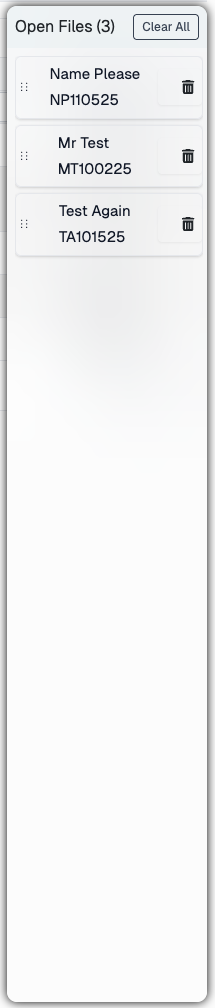
The My Files panel displays:
- Case File Numbers/Names - List of currently open files
- Delete Icons (×) - Remove individual files from the list
- Clear All Button - Remove all files from the list at once
How Files Are Added
Files are automatically added to this list when you:
- Open a case file from the Case Files page
- Navigate to a case file hub
- View case file details
Note: This list persists across browser sessions—your open files will still be there when you log back in!
Using the Panel
Switching Between Case Files
To navigate to a different case file:
- Open the My Files panel
- Click on any case file in the list
- The system navigates to that case file
- The panel automatically closes (showing you the file)
- The selected file is highlighted in the list
Pro Tip: This is much faster than navigating back to the Case Files page!
Removing Files from the List
Remove a Single File
- Hover over the file you want to remove
- Click the trash can icon on the right side
- The file is instantly removed from the list
Note: This only removes it from your quick-access list—it doesn't delete the actual case file!
Clear All Files
To remove all files at once:
- Click the "Clear All" button at the top right of the panel
- All files are removed from the list
- The panel shows an empty state
Reordering Your Files
You can organize your open files by dragging and dropping them into your preferred order.
How to Reorder
- Click and hold on any file in the list
- Drag it up or down to the desired position
- A visual indicator shows where the file will be placed
- Release to drop the file in the new position
- Your custom order is automatically saved
Move to Bottom
- Drag a file to the bottom drop zone (below the last item)
- The file moves to the end of the list
Pro Tip: Keep your most frequently accessed files at the top for quick access!
Best Practices
Keep It Organized
✅ Remove completed cases - Clear out files you're done working on to keep the list manageable
✅ Prioritize with order - Drag urgent cases to the top of the list
✅ Use Clear All strategically - Start fresh at the beginning of each day or work session
Maximize Efficiency
✅ Switch quickly - Use this panel instead of the browser back button
✅ Multi-tasking - Keep several related cases open for comparison or reference
✅ Persistent access - Your open files stay available across sessions
Common Workflows
Working on Multiple Related Cases
- Open all related case files from the Case Files page
- They're automatically added to My Files
- Use the panel to quickly switch between them
- Reorder them by priority or relationship
- When done, use Clear All to reset
Daily Case Management
- At the start of your day, check My Files
- Yesterday's cases are still there
- Clear All if you want a fresh start
- Or keep files you're still working on
- Add new cases as you work through your day
Quick Reference
- Keep frequently referenced cases in My Files
- Even when working on other tasks
- Quick access without searching
- Remove when no longer needed
Technical Details
Data Persistence
- Your open files list is saved to browser local storage
- Persists across browser sessions and page refreshes
- Unique to each browser/device
- Not synchronized across different computers
Automatic Updates
- The panel automatically updates when you open new case files
- Changes are saved immediately (no save button needed)
- Order changes are preserved instantly
Troubleshooting
My Files Panel Won't Open
Solution:
- Ensure you're logged in
- Refresh the page (F5 or Ctrl/Cmd + R)
- Check browser console for errors
Files Not Appearing in List
Possible Causes:
- You haven't opened any case files yet in this session
- Browser local storage is disabled
Solution:
- Navigate to a case file to add it to the list
- Check browser settings
List Showing Old/Outdated Files
Solution:
- Use the delete icons to remove outdated entries
- Click "Clear All" to start fresh
- The list doesn't automatically remove files—manual management required
Drag and Drop Not Working
Solution:
- Ensure you're clicking and holding on the list item itself
- Try refreshing the page
- Check that JavaScript is enabled in your browser
Tips & Tricks
💡 Quick Close: Click My Files again in the nav to close the panel
💡 Stay Focused: Keep only 3-5 active cases in the list for best productivity
💡 Weekly Cleanup: Clear All at the end of each week for a fresh start
💡 Emergency Access: If you close a case file accidentally, it's still in My Files!
Related Features
- Case Files - Full list of all case files with advanced filtering
- Dashboard - Overview of your work items and case statistics
- Navigation Bar - Access to all major sections
Need Help?
If you encounter issues not covered in this guide:
- Contact CaseCompass support via support@casecompass.com
- Provide specific error messages
- Include screenshots if helpful
Last Updated: November 2025