Law Firms User Guide
Overview
The Law Firms page is your centralized hub for managing law firm information, contacts, and relationships. Track law firm details, maintain contact information, and keep detailed notes about each firm you work with.
Purpose:
- Maintain a comprehensive directory of law firms
- Store contact information and addresses
- Track market and case managers
- Monitor active/inactive status
- Access audit history
Accessing Law Firms
- Click Law Firms in the main navigation menu
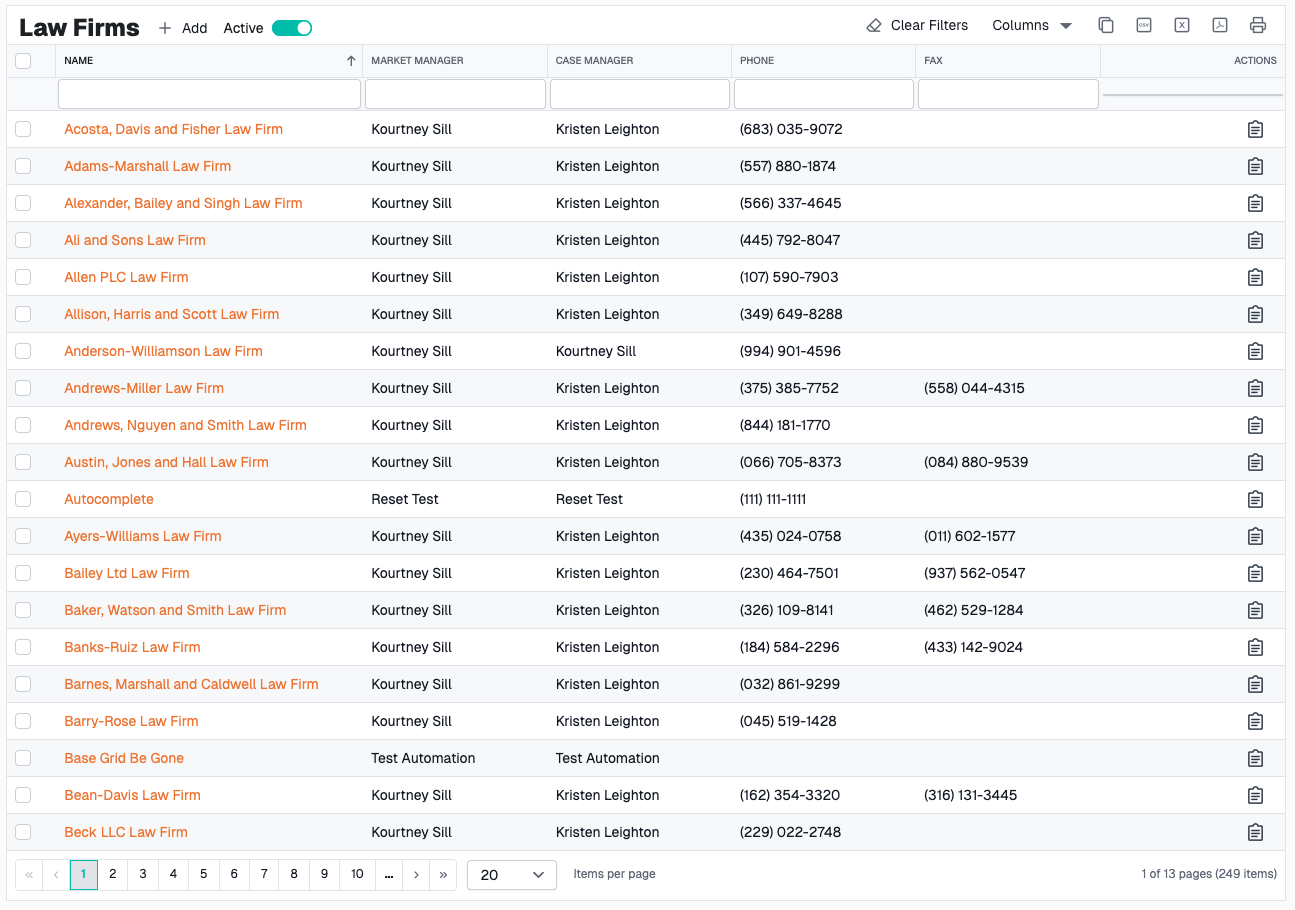
- The law firms grid displays with all active firms by default
Law Firms Grid
Grid Columns
| Column | Description |
|---|---|
| Name | Full law firm name (clickable to edit) |
| Abbreviation | Short name or acronym |
| Address | Primary business address (street address) |
| City | City location |
| State | State location |
| Zip Code | ZIP/Postal code |
| Phone | Primary phone number |
| Fax | Fax number (if available) |
| Website | Firm's website URL |
| Rating | Internal rating or classification |
| Market Manager | Assigned market manager |
| Case Manager | Assigned case manager |
| Is Active | Active/Inactive status indicator |
| Actions | Edit and view audit logs |
Sorting
Click any column header to sort:
- First click - Sort ascending
- Second click - Sort descending
- Third click - Remove sort
Default Sort: Name (A-Z)
Note: Some relationship columns cannot be sorted from the backend
Filtering
Text Filters
Type in the filter bar below any column to search:
- Name - Search by firm name
- Abbreviation - Search by abbreviation
- Address - Search by street address
- City - Search by city name
- Zip - Search by ZIP code
- Phone - Search by phone number
- Fax - Search by fax number
Tip: Filters use "contains" matching, so partial searches work
Dropdown Filters
State Filter:
- Click filter bar under State column
- Select from dropdown list of all states
- Shows firms in selected state only
Is Active Filter:
- Click filter bar under Is Active column
- Select "Active", "Inactive", or "All"
- Filters grid to show selected status
Active/Inactive Toggle
Toggle Button: Located in the toolbar (switch icon)
- ON (default) - Shows only active law firms
- OFF - Shows all law firms (active and inactive)
Usage:
- Click the toggle switch in the toolbar
- Grid refreshes automatically
- Toggle state is saved for next visit
Pagination
Controls:
- First/Previous/Next/Last page buttons
- Page number display
- Items per page dropdown
Page Size Options:
- 10 items per page
- 20 items per page (default)
- 50 items per page
- 100 items per page
Grid Persistence
What Gets Saved:
- Column widths
- Column order
- Column visibility
- Filter values
- Active toggle state
- Sort order
How It Works:
- Saved automatically to browser local storage
- Persists between sessions
- Specific to your user account
To Reset:
Click the Reset button in toolbar to restore defaults
Creating a Law Firm
Opening the Form
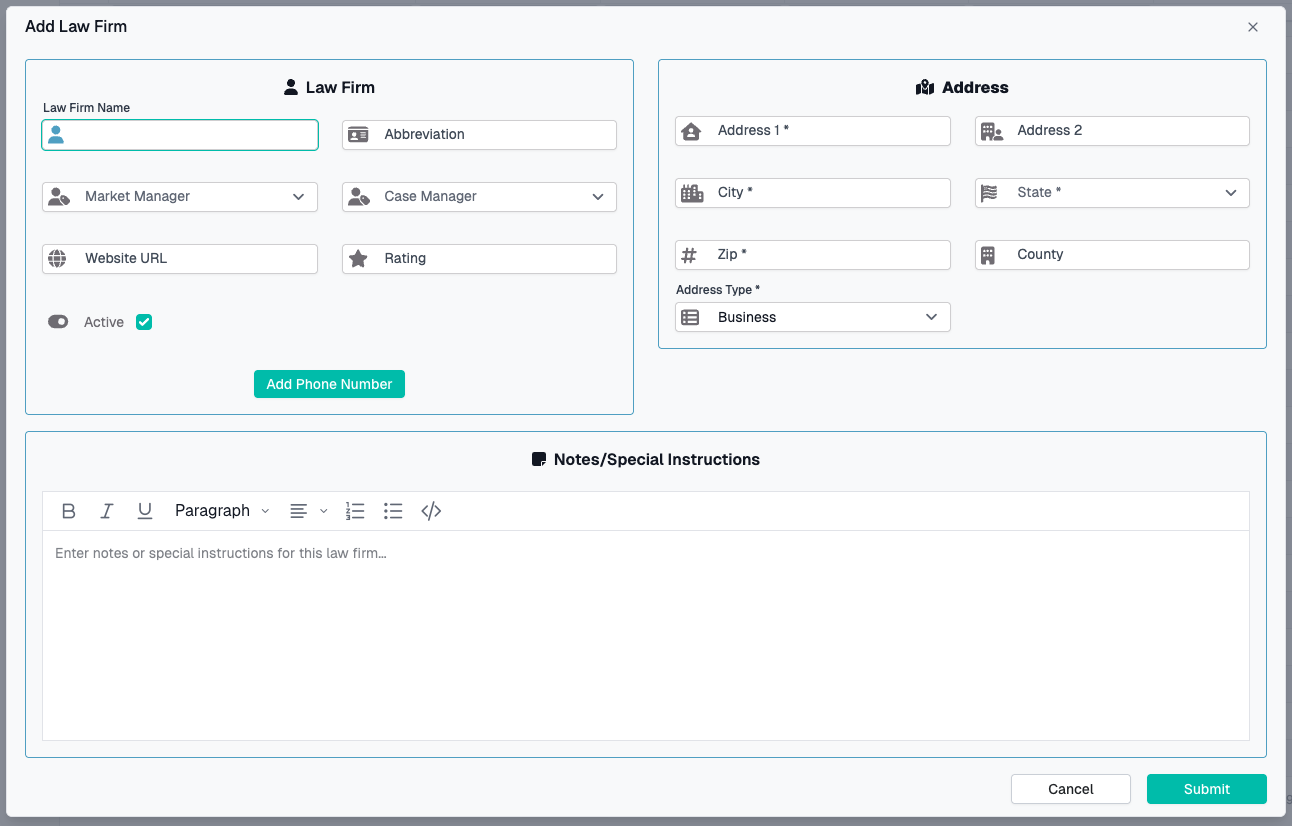
- Click Add button in the toolbar
- "Add Law Firm" dialog opens
Required Fields
⚠️ Must complete before saving:
- Name - Full legal name of the firm
- Market Manager - Select assigned market manager
- Case Manager - Select assigned case manager
- Address Information
Optional Fields
Web & Contact:
| Field | Description |
|---|---|
| Website URL | Full URL to firm's website |
| Rating | Internal rating or tier classification |
Notes:
| Field | Description |
|---|---|
| Notes | Rich text notes about the firm |
| Important Notes | Flag for important note indicator |
Settings:
| Field | Description |
|---|---|
| Is Active | Active/Inactive status (checkbox) |
Rich Text Notes
Using the Notes Editor:
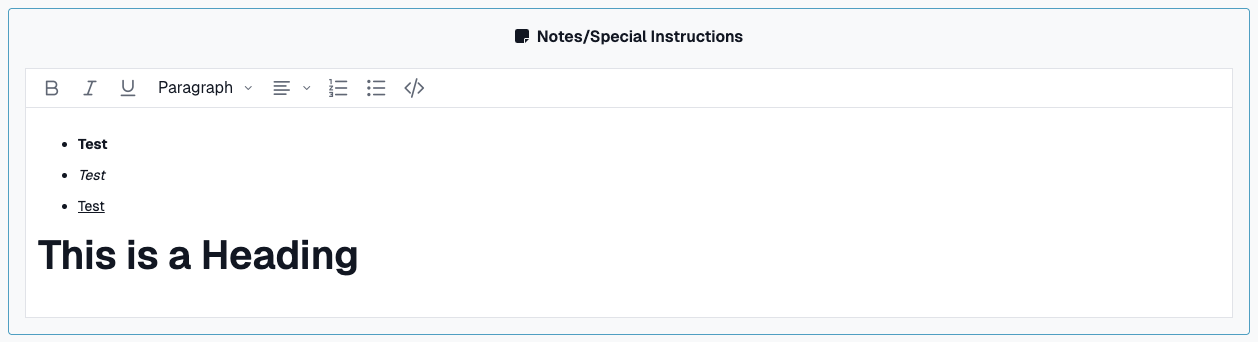
The Notes field includes rich text formatting:
Toolbar Options:
- Bold, Italic, Underline
- Formats - Headings, paragraphs
- Alignments - Left, center, right
- Lists - Ordered and unordered
- Source Code - Edit raw HTML
Best Practices:
- Use headings for organization
- Use lists for multiple items
- Keep formatting simple
- Use Important Notes flag for critical information
Submitting the Form
- Review all entered information
- Click Submit button at bottom
- Form validates all required fields
- Progress messages show:
- "Validating form..."
- "Saving law firm..."
- "Saving phone information..."
- "Saving address information..."
- "Linking phones..." (if new or updated)
- "Linking address..." (if new or updated)
- Success message displays
- Dialog closes
- Grid refreshes with new law firm
Validation Errors:
If required fields are missing:
- Fields highlight in red
- Error messages display
- Form remains open
- Scroll to errors and correct

Canceling
To cancel without saving: 1. Click Cancel button 2. Or click X in dialog corner 3. Form closes without saving 4. Any entered data is lost
Editing a Law Firm
Opening for Edit
Method 1: Click Name
- Click the law firm name in the grid
- Redirects to Law Firm Details Page
Method 2: Actions Column
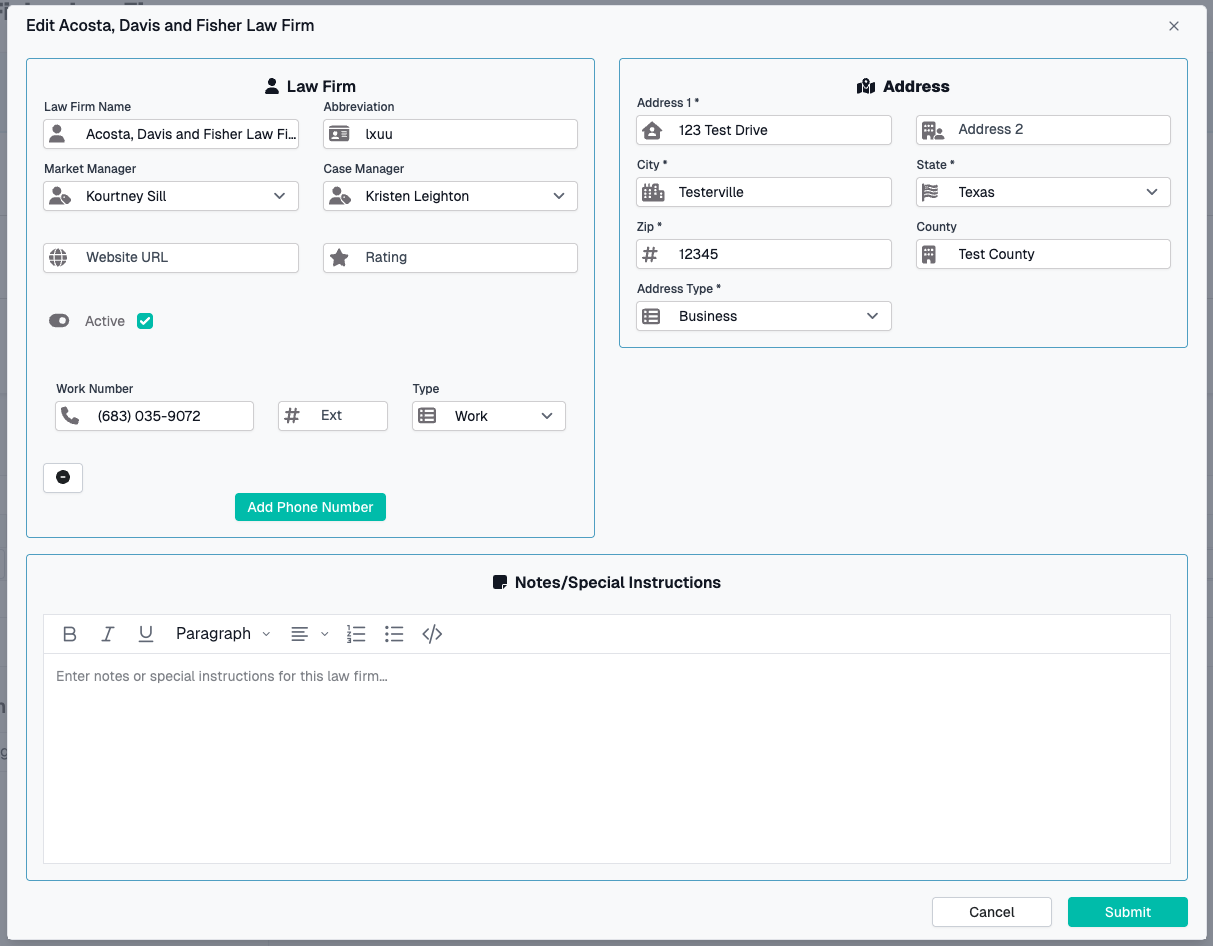
- Click Edit Details Button
- Edit dialog opens
Making Changes
Edit Form Behavior:
- Form pre-fills with existing data
- All fields are editable
- Address and phone numbers display
- Only changed fields are saved
Phone Number Changes:
- Edit Existing - Modify phone form and it saves
- Add New - Click + and fill in new phone
- Remove - Click - to mark for deletion
Address Changes:
- Modify any address field to save changes
- Address validation runs on submit
Deactivating a Law Firm
Instead of deleting, mark as inactive:
- Open law firm for editing
- Scroll to Is Active checkbox
- Uncheck Is Active
- Submit form
- Law firm hidden from default view (unless Active toggle is OFF)
Why Deactivate Instead of Delete: - Preserves case file associations - Maintains historical data - Can be reactivated if needed - Audit trail remains intact
Audit Logs
Viewing Change History
To view audit logs:
- Click Logs icon in Actions column
- Audit Logs dialog opens
- View complete change history
Information Displayed:
| Column | Description |
|---|---|
| Field Changed | Which field was modified |
| Old Value | Previous value |
| New Value | Updated value |
| Changed By | User who made the change |
| Changed On | Date and time of change |
| Action Type | Created, Updated, or Deleted |
Law Firm Details Page
Accessing Law Firm Details
From Grid:
- Click law firm name in grid
- Navigates to full law firm details page
What You'll Find:
- Complete law firm information
- Contacts
- Notes/Special Instructions
Common Workflows
Adding a New Law Firm
- Click Add button
- Enter required fields:
- Name
- Market Manager
- Case Manager
- Add address information
- Add at least one phone number
- Add fax number (if available)
- Add website information
- Enter notes about the firm
- Submit form
- Confirm in grid
Updating Contact Information
- Find law firm in grid (use filter if needed)
- Click Edit Icon in Contacts grid
- Update phone numbers:
- Edit existing phones
- Add new phones
- Remove old phones
- Update address if changed
- Submit form
- Verify changes in grid
Finding Inactive Firms
- Toggle Active switch to OFF
- Use Is Active filter → Select "Inactive"
- Review inactive firms
- Reactivate if needed by editing and checking Is Active
Tips & Best Practices
Data Entry
✅ Use abbreviations consistently - Makes searching easier
✅ Include all contact methods - Phone, fax, and website
✅ Keep notes updated - Document important firm details
✅ Use rating field - Track tier levels or priority
✅ Mark inactive, don't delete - Preserves case history
Organization
✅ Regular reviews - Check inactive firms quarterly
✅ Update managers - Keep assignments current
✅ Verify addresses - Confirm accuracy periodically
✅ Standardize data - Use consistent formats and naming
Grid Management
✅ Save common views - Use column chooser for custom views
✅ Use filters effectively - Combine multiple filters
✅ Export for reporting - Use Excel export for analysis
✅ Check audit logs - Review changes when data seems wrong
Troubleshooting
Law Firm Not Showing in Grid
Possible Causes:
- Law firm is inactive and Active toggle is ON
- Active filters excluding the firm
- Not yet created or was deleted
Solution:
- Turn Active toggle OFF to see all firms
- Click Reset to clear all filters
- Check Is Active filter dropdown
Cannot Edit Law Firm
Possible Causes:
- Insufficient permissions
- Firm is locked/archived
- Another user is editing
Solution:
- Check your user permissions
- Contact CaseCompass support
- Try again later
Phone Numbers Not Saving
Possible Causes:
- Invalid phone number format
- Missing required phone type
- Validation errors
Solution:
- Ensure 10-digit format (no dashes or spaces)
- Select phone type for each number
- Check for error messages in form
Address Won't Validate
Possible Causes:
- Missing required fields
- Invalid ZIP code format
- State not selected
Solution:
- Complete all required address fields (Address 1, City, State, ZIP)
- Use 5 or 9-digit ZIP code format
- Select state from dropdown (don't type)
Need Help?
If you encounter issues not covered in this guide:
- Contact CaseCompass support via support@casecompass.com
- Provide specific error messages
- Include screenshots if helpful
Last Updated: November 2025