Navigation Bar Overview
Introduction
The Navigation Bar is your primary tool for moving between different sections of CaseCompass. Located on the left side of the screen, it provides quick access to all major features and keeps you informed about important notifications.

Navigation Structure
The navigation bar is organized vertically with clear icons and labels for each section. The menu items you see may vary based on your role and permissions within the system.
Main Navigation Items
🗂️ My Files
Purpose: Quick access to your personal file collection
How to Use:
- Click to toggle a file panel showing your recently accessed case files
- Provides quick shortcuts to files you're actively working on
- Click again to hide the panel
📊 Analytics
Purpose: View comprehensive reports and data visualizations
What It Does:
- Opens PowerBI application in a new tab
How to Access:
- Left Click: Opens PowerBI in a new tab
- Middle Click / Ctrl+Click: Opens in new tab (same behavior)
- Right Click: Shows browser context menu for opening options
💼 Case Files
Purpose: Manage all case files in your system
Features:
- View complete list of active and closed cases
- Search and filter case files
- Create new case files
- Access individual case file information
Navigation:
- Click to navigate to Case Files page
⏱️ Tasks
Purpose: Manage your work items and to-do list
What You'll Find:
- All tasks assigned to you
- Task priorities and due dates
- Task status tracking
- Ability to create and edit tasks
Quick Tip: This is where you manage the same tasks shown on your Dashboard!
📅 Appointments
Purpose: Schedule and manage appointments
Features:
- Calendar view of all appointments
- List view of all appointments
- Toggle between calendar view and list view
- Schedule new appointments
- View appointment details
- Manage appointment conflicts
- Filter by provider or location
⚖️ Law Firms
Purpose: Manage law firm information and relationships
Access:
- View list of associated law firms
- Add new law firms
- Update firm contact information
- Track firm-related cases
👥 Providers
Purpose: Manage healthcare provider information
Features:
- View all medical providers in the system
- Add new providers
- Update provider details
- Link providers to appointments and cases
📥 Intake
Appears For: Intake Processor role only
Purpose: Process new case intake requests
Special Features:
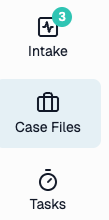
- Notification Badge: Shows number of pending intake requests
- Badge displays count of cases awaiting processing
- Opens in new tab when clicked
- Badge updates in real-time
Example: If you see a red badge with "5", there are 5 pending intake requests.
🧾 Automation
Purpose: Access workflow automation tools
What It Does:
- Opens automation platform in new tab
- Configure automated workflows
- Manage document automation
- Set up recurring tasks
🚪 Logout
Purpose: Securely sign out of CaseCompass
How It Works:
- Saves your current location
- Logs you out of the system
- Redirects to login page
- You can return to your previous page after logging back in
Navigation Features
Visual Indicators
Active Section Highlighting
The navigation bar highlights your current location with a distinct visual style. The active menu item is clearly marked so you always know where you are in the application.
Role-Based Navigation
Your navigation menu adapts based on your role in the system:
Standard User
- My Files
- Analytics
- Case Files
- Tasks
- Appointments
- Law Firms
- Providers
- Automation
- Logout
Lawyer Role (Limited Access)
- Case Files
- Appointments
- Law Firms
- Logout
Intake Processor Role
All standard items plus:
- Intake (with notification badge)
Navigation Tips & Best Practices
Staying Organized
- Keep an eye on notification badges for pending work
- Use My Files for quick access to recent cases
- Return to Dashboard regularly for overview of tasks
Efficient Workflows
- Start at Dashboard to see today's priorities
- Use Tasks to manage detailed work items
- Jump to Case Files for case-specific work
- Check for upcoming appointments
- Monitor Intake badge for new work (if applicable)
Accessibility Features
The navigation bar is designed with accessibility in mind:
- Keyboard Navigation: Use Tab to move between items, Enter to select
- Screen Reader Support: All items have proper ARIA labels
- Clear Icons: Visual icons supplement text labels
- High Contrast: Works with system accessibility settings
Common Questions
Why don't I see certain menu items?
Navigation items are filtered based on your role and permissions. If you believe you should have access to a section you don't see, contact CaseCompass support via support@casecompass.com.
What does the number badge mean?
Notification badges (typically on the Intake item) show the count of items requiring your attention. The number updates automatically as you process items.
Can I customize the navigation?
The navigation structure is standardized across all users. However, your role determines which items appear. Contact CaseCompass support via support@casecompass.com if you believe you need different access permissions.
What happens when I click the logo at the top?
Clicking the CaseCompass logo returns you to your dashboard.
Logo & Branding
The CaseCompass logo at the top of the navigation serves as:
- Brand Identity: Consistent visual reminder of the platform
- Home Button: Click to return to your starting page
- Orientation Aid: Always visible regardless of scroll position
Need Help?
If you encounter issues not covered in this guide:
- Contact CaseCompass support via support@casecompass.com
- Provide specific error messages
- Include screenshots if helpful
Last Updated: November 2025