Provider Map User Guide
Overview
The Provider Map is an interactive geographic search tool for finding healthcare providers near a patient's location. Quickly visualize provider locations, filter by service type, and access key provider information from a map-based interface.
Purpose:
- Find providers near a patient's address
- Filter providers by type and distance
- Visualize provider distribution on an interactive map
- View provider details and network status at a glance
- Navigate to provider profiles or schedule appointments
- Compare multiple providers in a geographic area
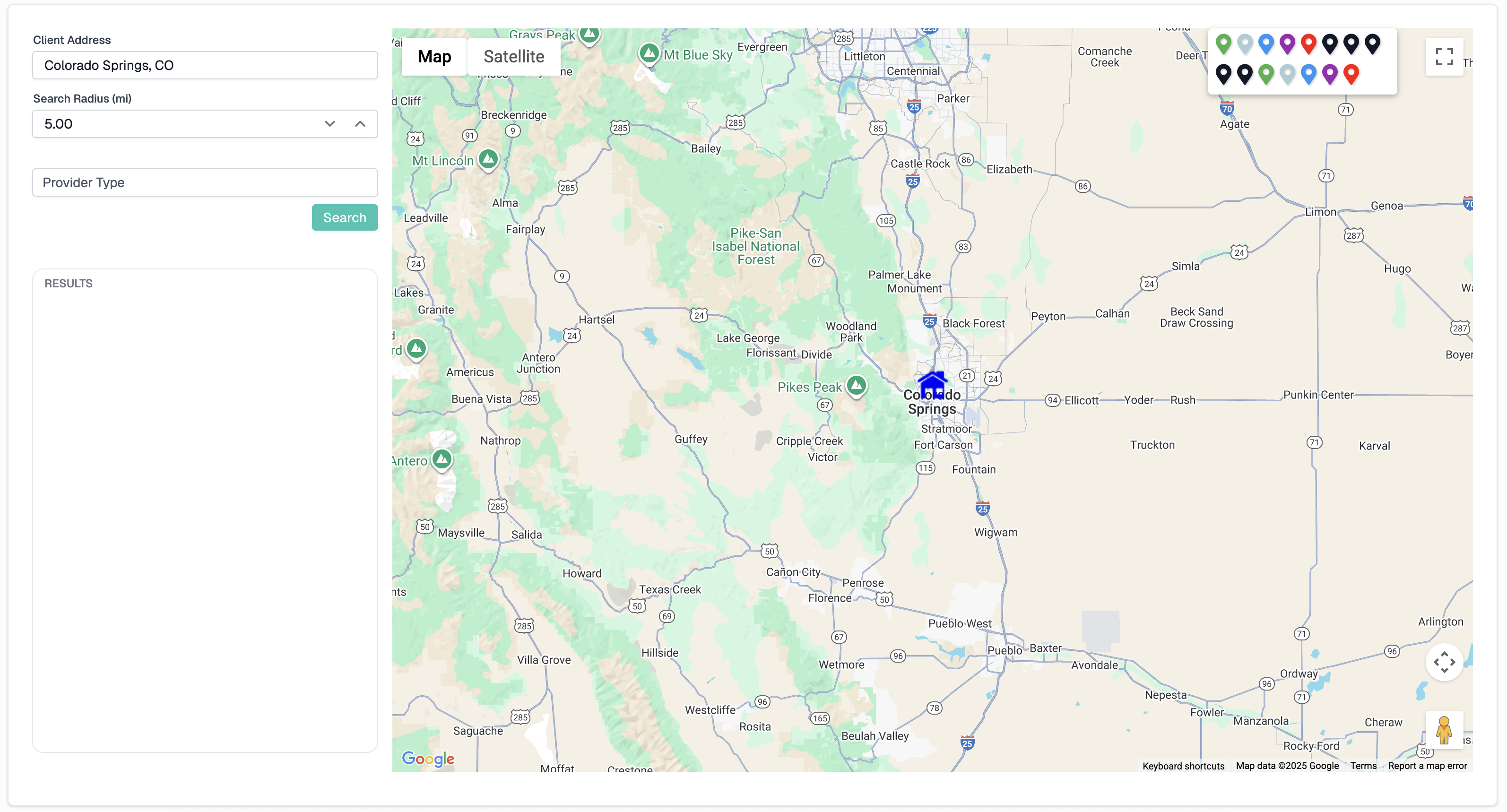
Accessing the Provider Map
From Case File View
- Navigate to a patient's case file
- The Provider Map button appears next to the Edit Case File button at the top right of the page
- Patient address is automatically populated
From Providers Page
- Navigate to the Providers page
- Providers Map button appears at the top right above the list of providers
- Address defaults to the organization default location specified by your system administrator
Interface Layout
Left Panel: Search & Results
The left panel contains the search form and results list.
| Section | Description |
|---|---|
| Search Form | Address, radius, and provider type filters |
| Results List | Scrollable list of matching providers |
Right Panel: Interactive Map
The right panel displays the Google Map with provider markers.
| Element | Description |
|---|---|
| Map View | Interactive Google Map centered on search location |
| Markers | Color-coded provider location pins |
| Clusters | Grouped markers when zoomed out |
| Home Marker | Patient's address location (house icon) |
| Legend | Network status color key |
Search Functionality
Search Fields
| Field | Description | Default |
|---|---|---|
| Client Address | Patient's address or search center point | Patient address or Organization Default Location |
| Search Radius (mi) | Distance in miles from address | 5 miles |
| Provider Type | Multi-select filter for provider types | None |
Performing a Search
- Enter or verify the Client Address
- Can use full address, city/state, or ZIP code
- Address is geocoded automatically
- Set the Search Radius in miles
- Smaller radius = fewer, closer results
- Larger radius = more results, potentially farther
- Select Provider Type(s)
- Filter to specific service types
- Multi-select allows combining types
- Leave empty to search all types
- Click Search button
- Results populate in list and on map
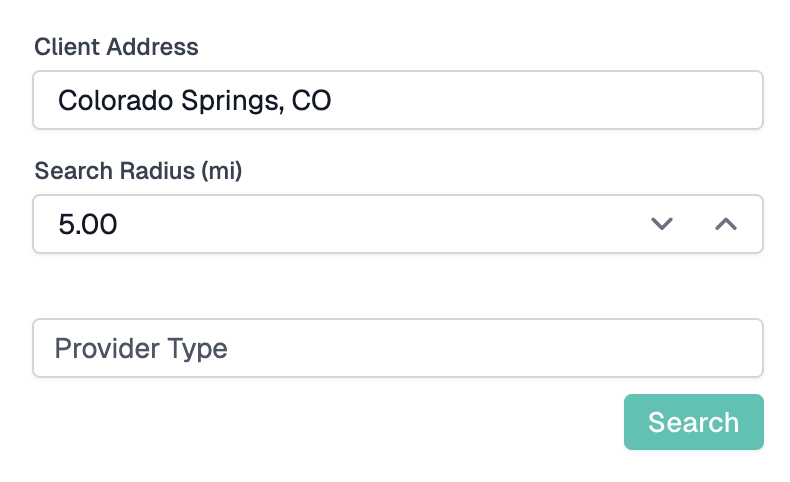
Provider Type Filter
How to Use:
- Click the Provider Type dropdown
- Search or scroll through available types
- Click to select one or more types
- Selected types appear as tags
- Click X on a tag to remove it
Common Provider Types:
- MRI
- Physical Therapy
- Chiropractic
- Pain Management
- Orthopedic Surgery
- Diagnostic Imaging
- Other/Unknown
- And many more...
Tip: Filtering by provider type helps narrow results to exactly what the patient needs.
Results List
Understanding Results
The results list displays all providers matching your search criteria, sorted by distance from the search address.
Each Result Card Shows:
| Element | Description |
|---|---|
| Network Indicator | Color bar showing network status |
| Provider Name | Full provider or practice name |
| Distance | Miles from search address |
| Address | Provider's location |
| Provider Type | Services offered |
| Network Status | Text label for network tier |
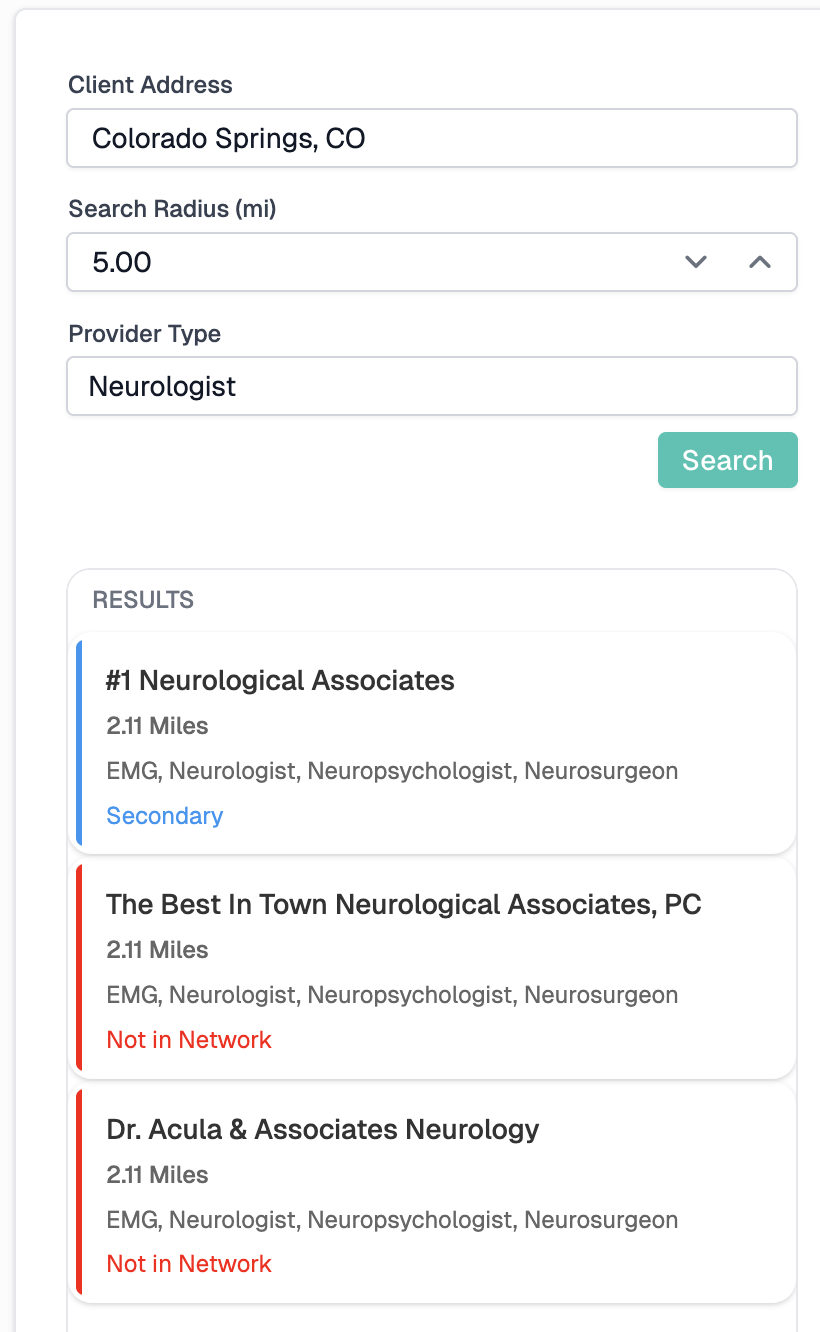
Interacting with Results
Click a Result to:
- Center the map on that provider's location
- Zoom in for detailed view
- Open the provider's info window on the map
- Highlight the selected provider
Result Sorting:
- Results are automatically sorted by distance (closest first)
- Closer providers appear at the top of the list
- Distance is calculated from the search address
Map Features
Provider Markers
Marker Colors:
Markers are color-coded by network status/priority:
| Color | Meaning |
|---|---|
| Green | Preferred / Priority providers |
| Blue | Secondary network |
| Yellow | Virtual providers |
| Red | Out of network |
Marker Icons:
- Drop pins - Healthcare providers
- House icon - Patient's home address
Clicking a Marker
- Click any provider marker on the map
- Info window opens with provider details
- View key information at a glance
- Click action button to proceed to schedule an appointment with that provider
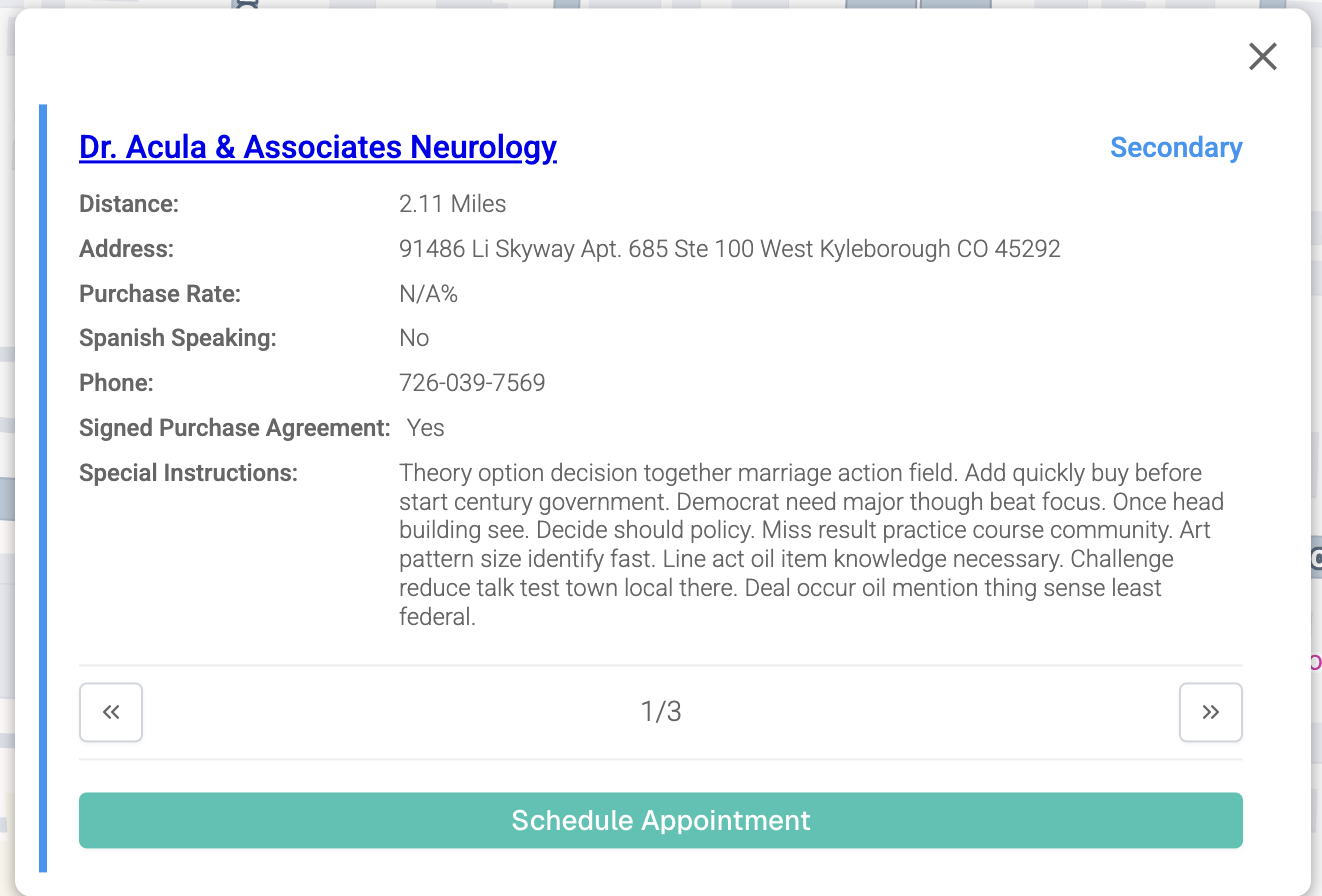
Marker Clustering
When many providers are close together, markers cluster into numbered groups.
Cluster Behavior:
- Number indicates count of providers in cluster
- Click cluster to expand and navigate between providers
- Use Previous/Next buttons in info window to browse
Navigating Clusters:
- Click on a cluster (numbered circle)
- Info window opens for first provider
- Use ◄ and ► buttons to cycle through
- Counter shows current position (e.g., "2/5")
- Click outside to close
Map Controls
Navigation:
- Zoom - Mouse scroll or +/- buttons
- Pan - Click and drag to move
- Full Screen - Expand map view
Zoom Levels:
- Zoomed out: See regional overview with clusters
- Zoomed in: See individual provider markers
- Double-click: Quick zoom in
Provider Info Window
Information Displayed
When you click a marker, the info window shows:
| Field | Description |
|---|---|
| Provider Name | Clickable link to provider profile |
| Network Status | Color-coded status label |
| Distance | Miles from search address |
| Address | Full street address |
| Purchase Rate | Reimbursement percentage |
| Spanish Speaking | Language capability (Yes/No) |
| Phone | Primary contact number |
| Signed Purchase Agreement | Contract status (Yes/No) |
| Special Instructions | Important notes (if flagged) |
Network Status Legend
The legend displays in the bottom corner of the map showing all network statuses and their corresponding colors.
How to Use:
- Reference legend to understand marker colors
- Hover over legend icons for status descriptions
- Helps quickly identify preferred providers
Common Workflows
Finding a Provider for a Patient
- Navigate to patient's case file
- Scroll to Provider Map section
- Patient address is pre-filled
- Set appropriate search radius (start with 5-10 miles)
- Select relevant provider type(s)
- Click Search
- Review results in list (sorted by distance)
- Click providers to view details on map
- Compare network status and distance
- Select best option
Searching by Specific Address
- Clear the Client Address field
- Enter desired address or location
- Set search radius
- Select provider type(s)
- Click Search
- Results center on entered address
Finding Spanish-Speaking Providers
- Perform standard search
- Review info windows for "Spanish Speaking: Yes"
- Or filter results by looking at info window details
- Select providers with language match
Comparing Nearby Providers
- Search with appropriate radius
- Click providers in results list
- Map zooms to each location
- Review info window details
- Compare:
- Distance from patient
- Network status
- Reimbursement rate
- Contract status
- Select optimal provider
Troubleshooting
No Results Found
Possible Causes:
- Search radius too small
- Provider type filter too restrictive
- No providers in geographic area
- Address not recognized
Solution:
- Increase search radius
- Verify address is correct
- Try city/state instead of full address
- Add "Other/Unknown" to Provider Type(s) filter
Markers Not Appearing
Possible Causes:
- Search not performed yet
- All providers filtered out
- Address geocoding failed
- Providers don't have coordinates
Solution:
- Click Search button
- Remove filters and search again
- Verify address format
- Some providers may lack location data
Map Not Loading
Possible Causes:
- Network connectivity issue
- Google Maps API issue
- Browser compatibility
Solution:
- Refresh the page
- Check internet connection
- Try different browser
- Clear browser cache
Address Not Geocoding
Possible Causes:
- Invalid or incomplete address
- Unusual address format
- Google Maps cannot recognize location
Solution:
- Use complete street address
- Try city, state, and ZIP only
- Check for typos
- Use well-known landmark nearby
Distance Seems Incorrect
Possible Causes:
- Provider address outdated
- Geocoding inaccuracy
- Provider has multiple locations
Solution:
- Distance is calculated from search center
- Provider's stored coordinates may differ from actual
- Check provider profile for accurate address
Cluster Not Expanding
Possible Causes:
- Single click not registered
- Map still loading
- Browser issue
Solution:
- Click directly on cluster number
- Wait for map to fully load
- Try clicking again
- Use results list instead
Info Window Not Opening
Possible Causes:
- Click not on marker
- Another info window blocking
- Map not fully loaded
Solution:
- Click directly on marker pin
- Close any open info windows first
- Wait for map to complete loading
- Try clicking from results list
Need Help?
If you encounter issues not covered in this guide:
- Contact CaseCompass support via support@casecompass.com
- Provide specific error messages
- Include screenshots if helpful
Last Updated: December 2025